4. Writing Data#
Let’s write the adjusted data. Here is how we would do it with pandas:
storage_folder = '/mnt/cluster_storage' # Modify this path to your local folder if it runs on your local environment
df.to_parquet(f"{storage_folder}/adjusted_data.parquet")
Let’s check the file we just wrote:
!ls -lh {storage_folder}/adjusted_data.parquet
Here is how we would do so with Ray Data:
!rm -rf /mnt/cluster_storage/adjusted_data_ray/ # let's remove the directory if it exists
ds_limited = ds_adjusted.limit(df.shape[0]) # we limit to avoid writing too much data
ds_limited.write_parquet(f"{storage_folder}/adjusted_data_ray/")
There are Ray data equivalents for common pandas functions like write_parquet for to_parquet, write_csv for to_csv, etc.
See the Input/Output docs for a comprehensive list of write functions.
Let’s check the files in the directory:
!ls -lh {storage_folder}/adjusted_data_ray/
Notice that we have multiple files in the directory. This is because Ray Data writes data in a distributed manner.
Each task writes its own file, and the number of files is proportional to the number of CPUs in the cluster.
Ray Data uses Ray tasks to process data.
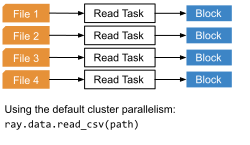
When reading from a file-based datasource (e.g., S3, GCS). Each read task reads its assigned files and produces an output block which in turn is consumed by the next task in the pipeline.
We passed /mnt/cluster_storage/ as the path to write the data. This is a path on the Ray cluster’s shared storage. If instead you use a path that is only local to one of the nodes in a multi-node cluster, you will see errors like FileNotFoundError: [Errno 2] No such file or directory: '/path/to/file'.
This is because Ray Data is designed to work with distributed storage systems like S3, HDFS, etc. If you want to write to local storage, you can add a special prefix local:// to the path. For example, local:///path/to/file. However to do so you will need to ensure that Ray is enabled to schedule and run tasks on the head node of the cluster.